
Outgoing Email Setup in Mozilla Thunderbird
Follow the Step-by-Step guide below to setup Outgoing Email account in Mozilla Thunderbird.
-
Open Thunderbird
Click Tools
Select Account Settings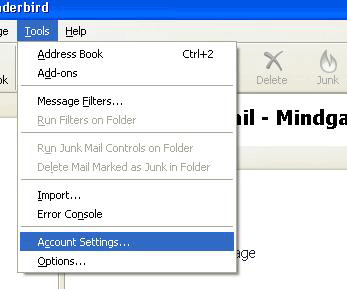
-
Click Add Account.
Select Email account then Click Next.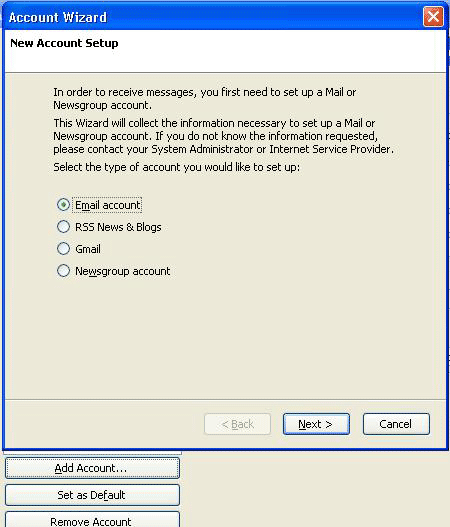
-
Type Your Name
Enter your Email Address then Click Next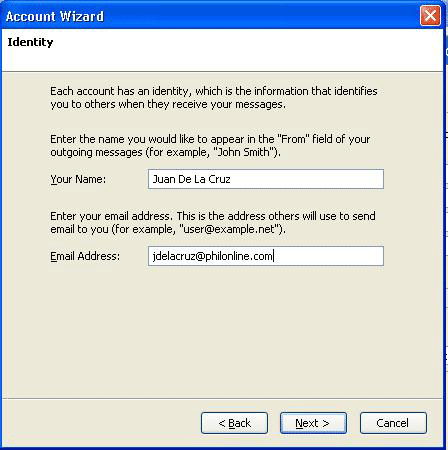
-
Select POP or IMAP Settings
Enter mails.philonline.com as Incoming server then click Next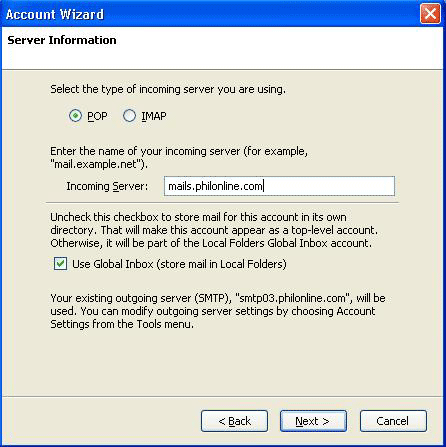
-
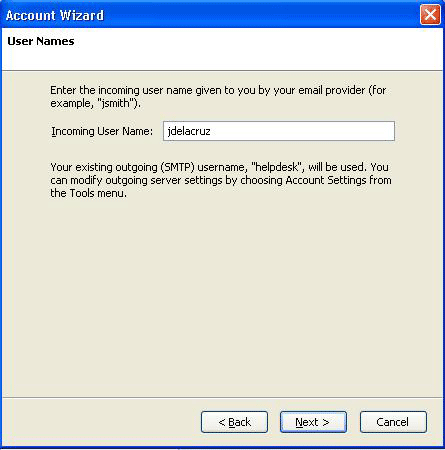
Enter Incoming username then click Next
-
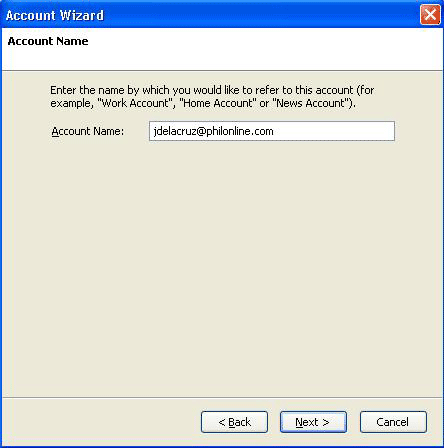
Enter Account name just like below, then click Next
-
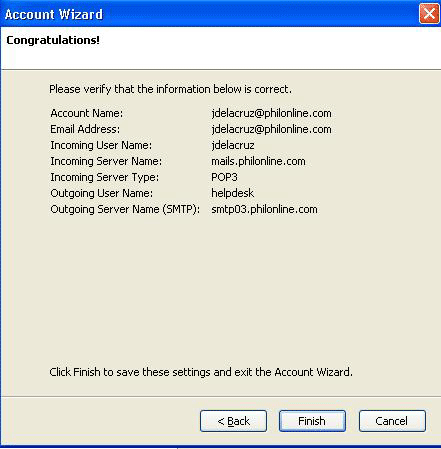
Click Finish
-
Click Outgoing Server (SMTP)
Click Add
Enter the information just like below in the SMTP server.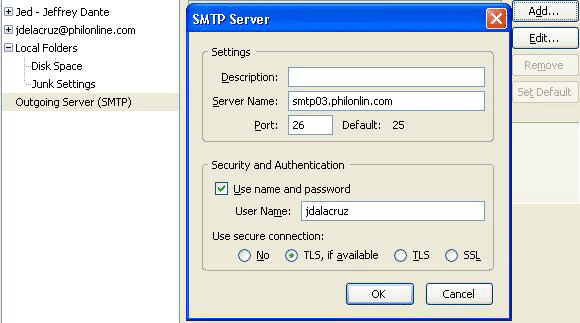
SMTP port number is 26 then click ok to finish the settings.