Advertisement

Support
Email Setup in Windows Mail
Follow the Step-by-Step guide below to setup PhilOnline Email account in Windows Mail.
Open Windows Mail.
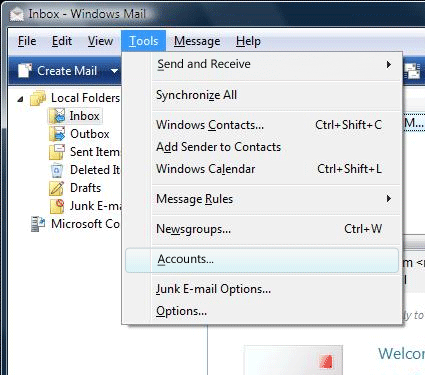
Go to Tools followed by Accounts.
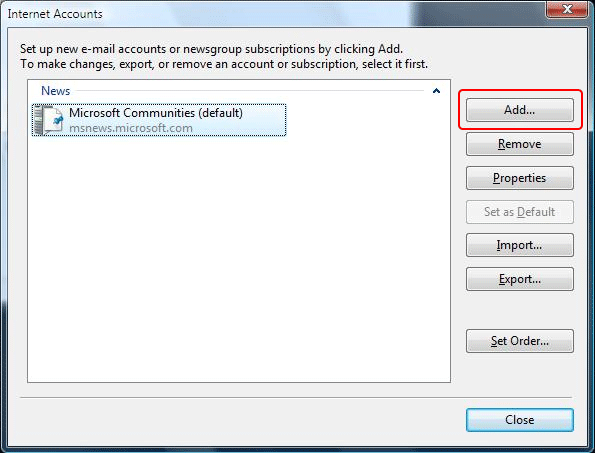
In the Internet Accounts window, click Add button.
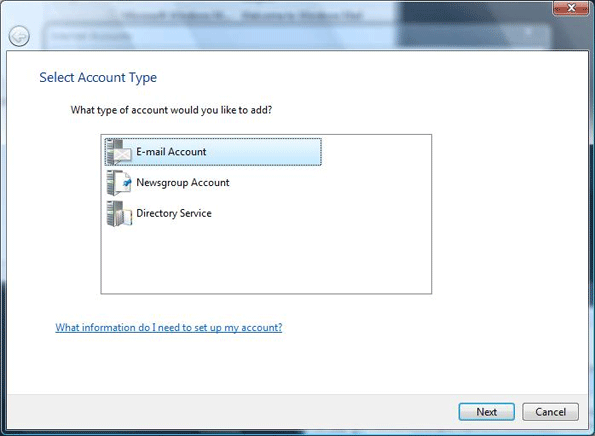
Select E-mail Account as the Account Type you would like to add, then click Next.
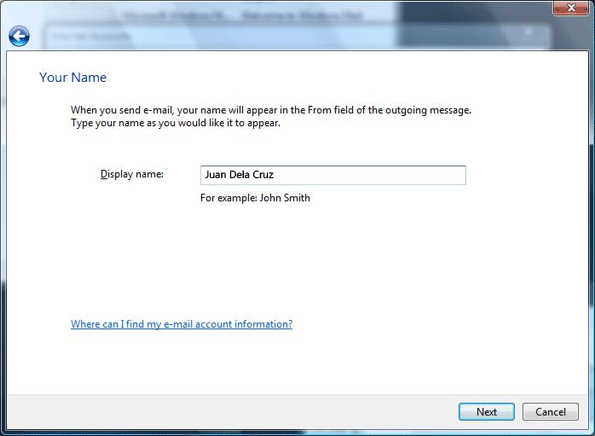
Enter your Name in the Display name field. This is the first thing a person will see when they receive an email from you. Click Next button.
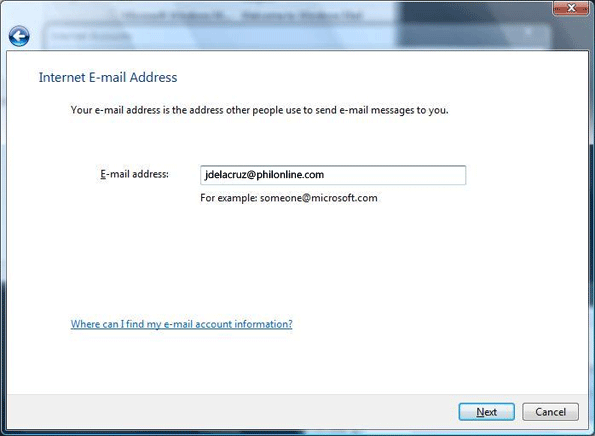
Enter your PhilOnline email address then click Next button.
Enter the following mail server information:
For Incoming e-mail server type: Select either POP3 or IMAP
For Incoming mail (POP3 or IMAP) server: mails.philonline.com
For Outgoing e-mail (SMTP) server name: mails.philonline.com
Once done, click Next button.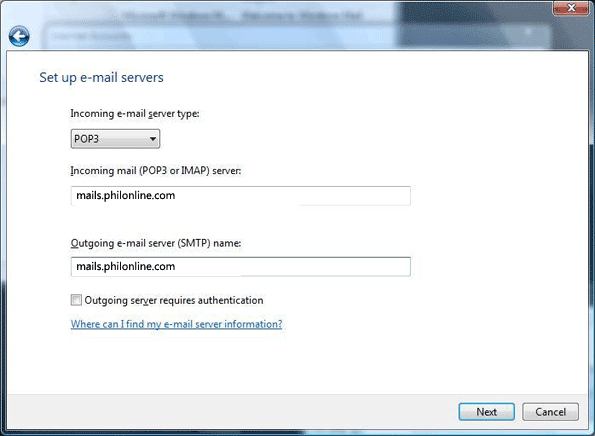
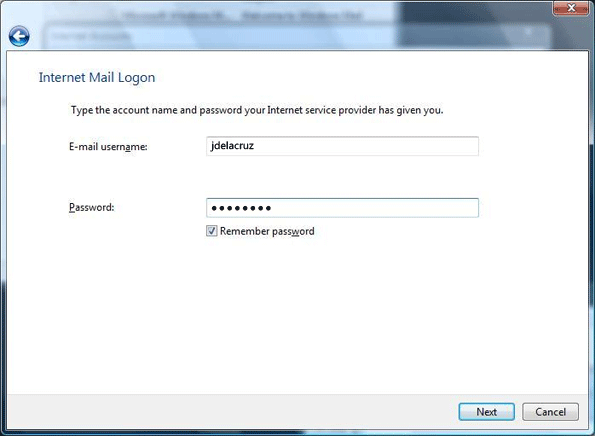
Enter your PhilOnline username and password then click the Next button.
Click Finish, then click Close.