Advertisement

Support
Email Setup in Microsoft Office Outlook 2007
Follow the Step-by-Step guide below to setup PhilOnline Email account in Microsoft Office Outlook 2007.
Open Microsoft Office Outlook 2007.
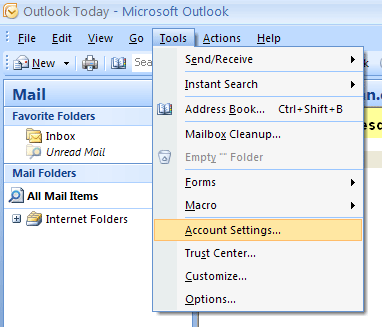
Go to Tools followed by Account Settings.
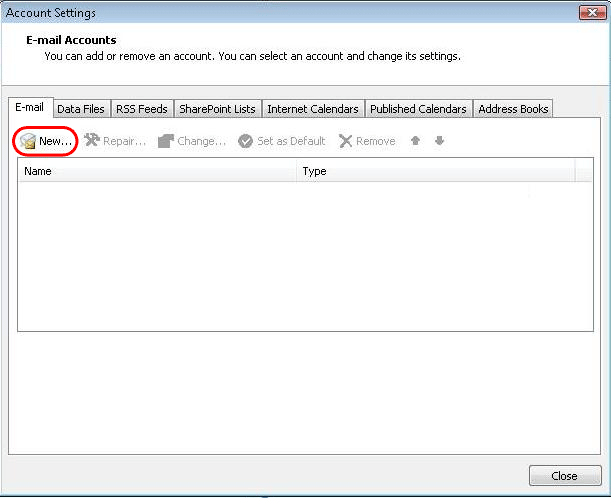
In the Account Settings window, select the E-Mail tab, and click New.
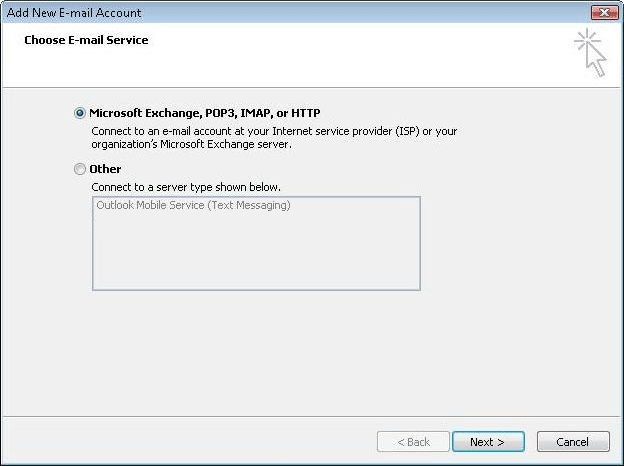
For the E-mai Service, select Microsoft Exchange Server, POP3, IMAP, or HTTP, and then click Next.
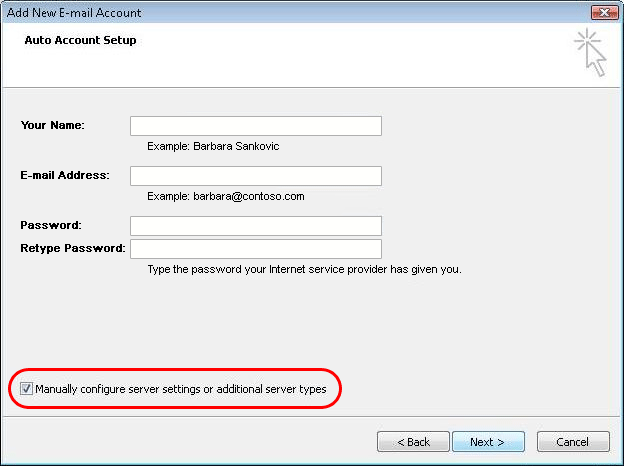
Check the Manually configure server setting or additional server types checkbox and then click Next.
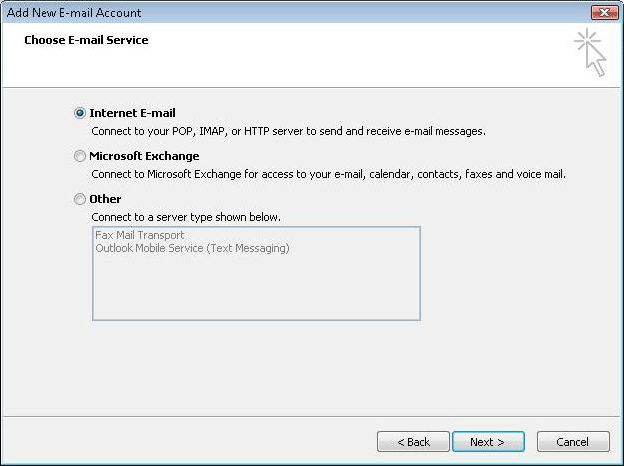
Select Internet E-mail from the E-mail Service options given and click Next.
Enter the following Internet E-mail Setting information:
Under User Information: enter your name and your PhilOnline email address.
Under Server Information:
- for Account Type, select either POP3 or IMAP
- enter mails.philonline.com for both Incoming mail server and Outgoing mail server (SMTP).
Under Logon Information: enter your PhilOnline username and password.
Once done, click Next button.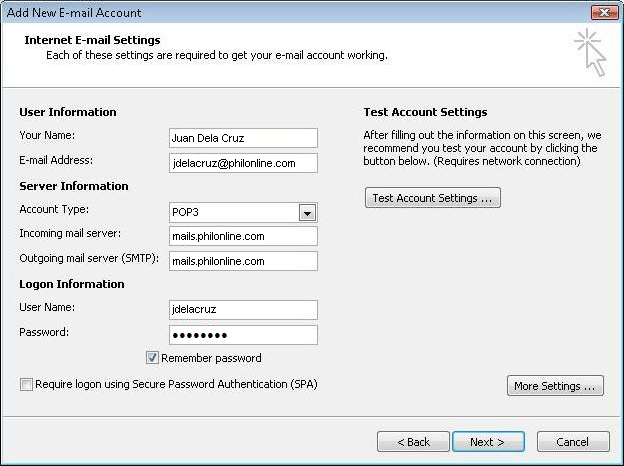
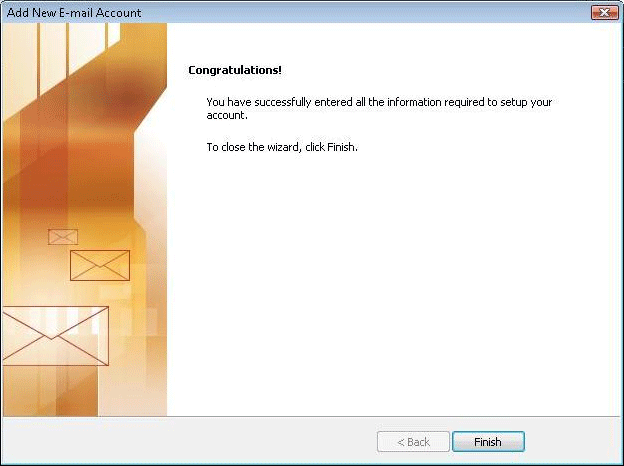
Click Finish after you have successfully configured your email settings for PhilOnline in Microsoft Office Outlook 2007